Summary
In some cases, an organisation’s internal firewall or security settings may block access to the Realtime transcript. The steps below can help identify whether this is the cause and assist your IT team in resolving the issue.
Firewall Check
Occasionally, firewalls or antivirus software may block the WebSocket connection required to display the Realtime transcript.
To check whether this is the cause, please follow the steps below:
- Visit: https://websocketstest.com/
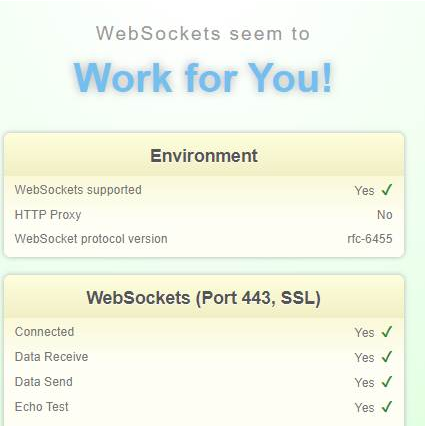
- When the page loads, the expected message should read: “WebSockets seem to work for you.”
- Within the checklist on the page, the results should show “Yes” for all WebSocket tests.
If you see any error messages or “No” responses, this may indicate that WebSockets are being blocked by your organisation’s firewall, proxy, or antivirus settings.
In this case, please contact your internal IT team and ask them to review whether WebSocket connections are being restricted.
Expected Results
When the test is successful, you should see:
- Message: “WebSockets seem to work for you.”
- All WebSocket checks marked “Yes”
Please note that receiving “No” for HTTP Proxy is normal and will not prevent the Realtime transcript from working.