
Hearing Assist and Inconsistency Detection is available in BETA - if you would like to enable this for your hearing please reach out to CST@opus2.com.
Summary
As testimony is transcribed in real time, AI automatically compares what is being said against all documents and transcripts in the party workspace - the shared hearing bundle plus any additional documents added by the party - and flags potential inconsistencies. No user prompting required.
Every inconsistency flag appears in the Realtime wall showing rationale for the insight, consistent points, inconsistent points and related source materials.
Inconsistency detection is there to support your analysis, not to replace it. Insights and confidence scores draw your attention to points worth checking. The judgement on whether something is genuinely inconsistent, and what to do about it, remains with you.
Hearing Assist will need to be enabled in your workspace and for your account before you can use it - please reach out to CST@opus2.com for more information.
Guidance
Insights appear in two connected places:
- On the transcript, as a flag against the relevant page and line.
- On the Realtime wall, as a full card with the complete rationale.
Selecting a flag on the transcript takes you to the matching card on the wall, and selecting a card highlights the related line on the transcript.
Insight flags on the transcript
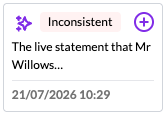
As inconsistencies are detected, a flag is placed in the margin of the transcript against the relevant page and line. Each flag shows:
- The Hearing Assist icon
 indicating the flag was generated by AI.
 - A label to display the type of insight e.g. 'Inconsistent'
- A (+) button to create a note from the AI insight (see below).
- A brief preview of the insight rationale.
- A timestamp showing when the insight was generated.
Select a flag in the margin to be taken to the card in the Realtime wall.
Insight cards on the Realtime wall
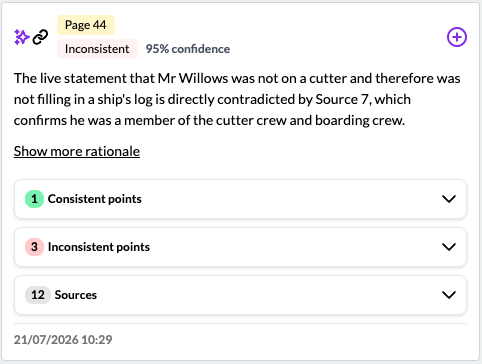
The Realtime wall, to the right of the transcript, lists every AI insight generated. Each insight is shown as a card containing the following information:
| Element | Description |
|---|---|
| Hearing Assist icon | Indicating the card was generated by AI. |
| Page number | The transcript page the insight relates to, for example Page 28. |
| Label | Indicating the type of insight flagged, in this case 'Inconsistent'. |
| Confidence | A score to show how confident the analysis is in the insight, shown as a percentage. It is a guide to help you prioritise, not a finding. |
| Rationale | A plain-language explanation of why the point has been flagged, with reference to source materials. Select 'Show more rationale' to read the full reasoning. |
| Consistent & Inconsistent points | Expandable groupings that break the analysis into individual points. Select a heading to open the points in that group. |
| Sources | The documents and transcripts the analysis relied upon, in order of relevance. Click the expand icon  to open each source in a preview window. to open each source in a preview window. |
| Timestamp | Indicating when the insight was generated. |
Working through the rationale and the sources lets you verify an insight before you act on it.
Creating a note from an insight
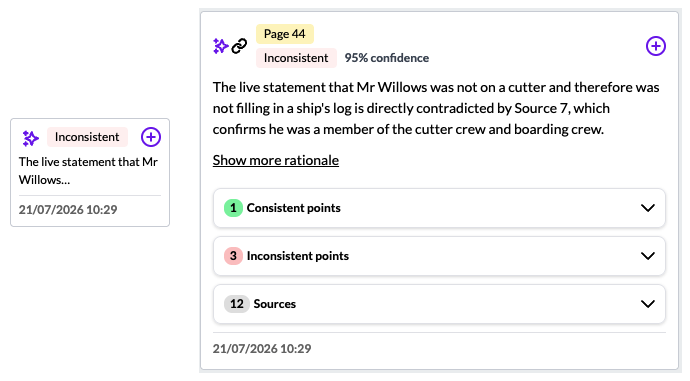
Create a note from an insight to work on it with your team. A note brings the insight into the Hearings solution's native notes feature, so you can share it with your team, tag it, link it to other materials and export it in the usual way. Your team can also add replies to build up a threaded discussion on the point.
- Find the insight, either on the transcript or Realtime wall.
- Select the (+) button on the insight.
- Add the note information as outlined here and click save to create the note. Upon creation, the note is pinned to the relevant point in the transcript.
Once created, the note behaves like any other note in the Hearings solution. You can read it alongside the transcript, and it sits with your other annotations on the Notes page.The note also keeps its link to the original insight, and by selecting the Hearing Assist icon you can reopen the full insight in a window, with the accompanying rationale, points, and sources.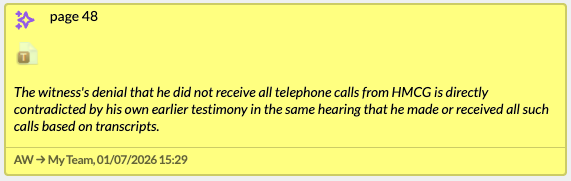
Filtering insights
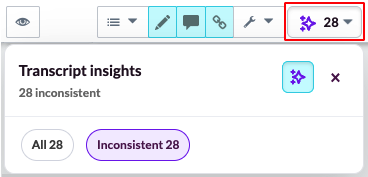
The filter at the top of the Realtime wall controls which insights are shown on the transcript and Realtime wall. There are three options:
- All - every insight Hearing Assist has generated.
- Inconsistent - only insights flagged as inconsistent.
- Ai Assist icon - turn off all insights from appearing in the Realtime wall.
Additional insights will be added here over time to allow granular control over what you see against the transcript feed.
Important notes
- Hearing Assist is available on the web version of Realtime only.
- Hearing Assist should only be provided to users with full access to documents and transcripts (e.g. users with limited access due to confidentiality rings, or similar, are not permitted to use Hearing Assist).
- Hearing Assist works from the text in your PDF documents. Where a document's underlying text is poor quality - for example a scanned document with inaccurate OCR - the analysis has less reliable material to work from, which can affect the quality of the insights. Any documents uploaded as native files will not be accounted for.
- Users can create and share notes from insights, but only recipients who have Hearing Assist enabled can open the underlying insight from the note.
- When a Realtime feed ends, it becomes a transcript and its AI insights stay with that transcript on the Transcripts page. If the text is changed or moved during transcript completion, an insight may become orphaned from the point it originally referred to.
- Your AI insights draw on the shared hearing bundle and transcripts, and on any documents your party adds to its private workspace. Adding your own material to the workspace can therefore enrich your insights feed.
- Insights are prompts for review, not findings. Read the rationale and check the sources before relying on one.