
| Minimum Software Version | 7.20 |
| Solution(s) | Hearings ✓ Cases International⨉ Cases US⨉ Institutions ⨉ Counsel ⨉ |
EPE Shared Control is an extension to the existing Electronic Presentation of Evidence (EPE) feature. During a hearing, EPE Shared Control allows control of the display to be passed between the EPE Officer and the Barrister. This feature also enables all legal staff to be involved in creating presentations prior to a Hearing.
Workflow
At a high level, the workflow is that the EPE Officer works as normal, until the Barrister verbally requests control of the display. The EPE Officer gives control to the Barrister (or an associate). The slides can be shown with prepopulated callouts or annotations in single/dual page view during the hearing. The Barrister goes through the presentation with the witness and can also show ad-hoc documents if needed. When the presentation is complete, at the Barrister’s verbal request, the EPE Officer takes back control.
Prerequisites
EPE Shared Control is not enabled by default for all users and must be requested prior to the hearing by contacting casemanagers@opus2.com.
Logging in to EPE Shared Control
- Log in as a party user for EPE Shared Control.
Note: Log in using your usual Opus 2 Hearings login and password. If you have problems, please contact Opus 2 using Team Contact Details.
The Case Dashboard page appears with the Party Presenter option shown on the toolbar.
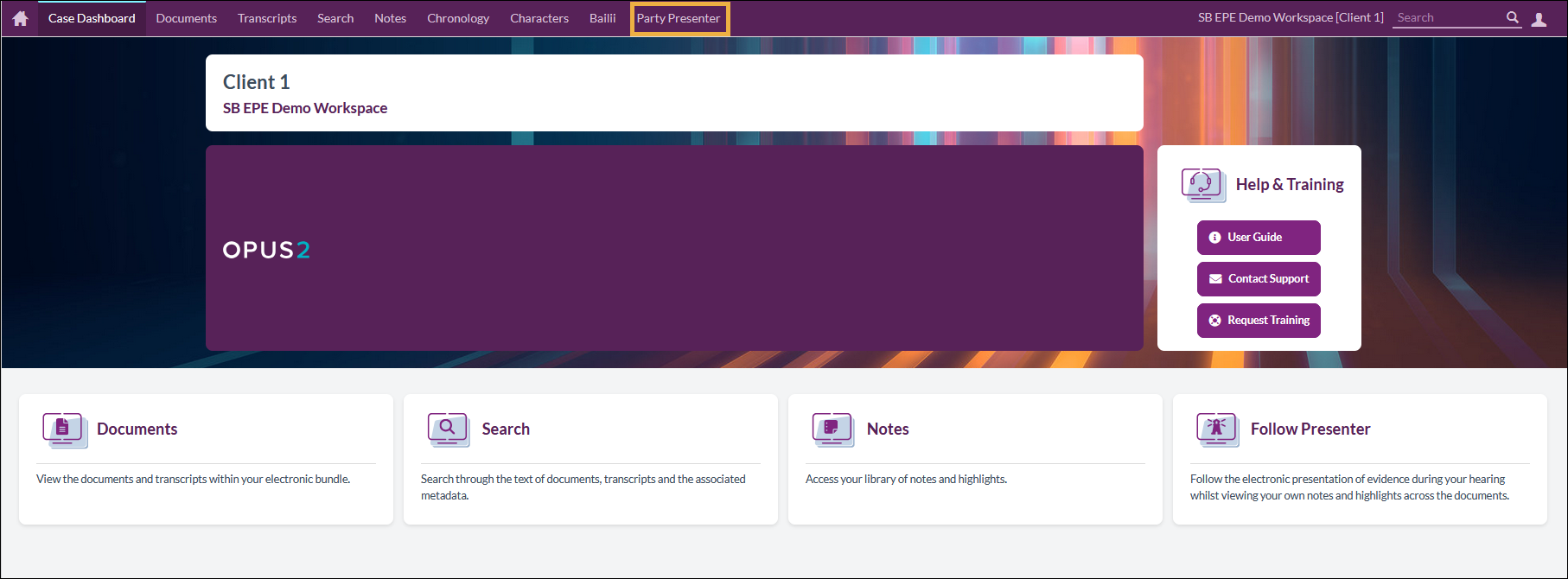
- Select Party Presenter.
The Party Presenter screen is shown. This is where you create presentations and also show them when ready.
Parts of the Preview panel
The Preview panel (top)
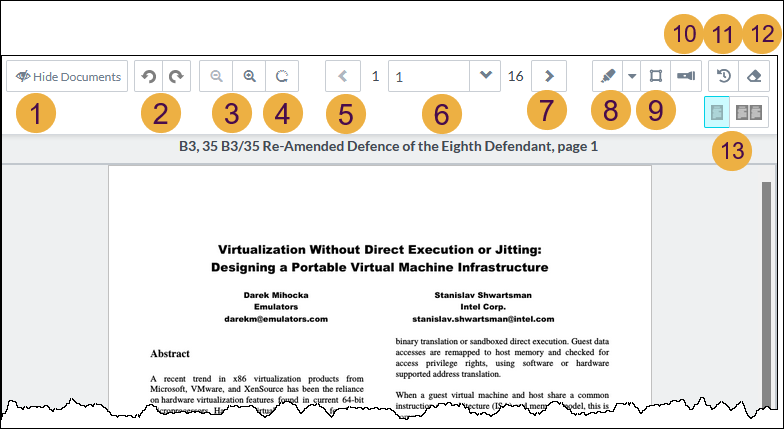
- Hide documents to show a full screen view of the slide or document preview.
- Rotate the page left or right.
- Zoom out or in.
- Zoom reset and reset of any rotation.
- Previous page.
- Current page number and drop-down list of pages.
- Next page.
- Text highlight and drop-down list of colours.
- Box select.
- Callout.
- Undo highlights or selections back several steps.
- Erase highlights or selections.
- Single page view and Dual page view.
The Preview panel (bottom)
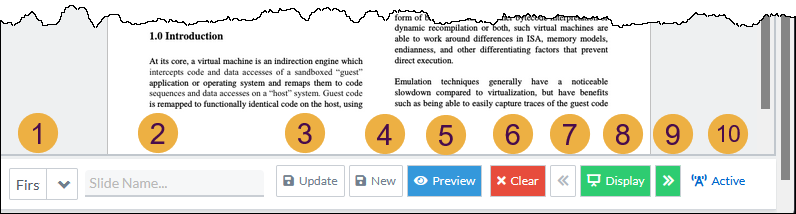
- Drop-down list of available presentations.
- Text input for slide name creation and update. When creating a new slide from the one shown in preview, EDIT the name in this field first.
- Update slide - update the existing slide with the current document preview.
- New slide - create a new slide from the current document preview.
- Preview - preview slide full-screen in a new tab for only you to see how it will look when displayed.
- Clear the display when you have control of the Evidence display screen.
- Display previous slide in current presentation on the Evidence display screen.
- Display - display previewed slide or document.
- Display next slide in the current presentation on the Evidence display screen.
- Indicator that is lit up when you have control of the presentation.
Keyboard shortcuts
When in slide view, use Up and Down arrows to move through your slides.
When you have control, use Left arrow to move to the previous slide and Right arrow to move to the next slide.
When you have control, pressing the Equals sign (=) pushes the Display button.
Requesting control of the EPE display screen
- Log in as a party user for EPE Shared Control.
The Case Dashboard page appears with the Party Presenter option shown on the toolbar.
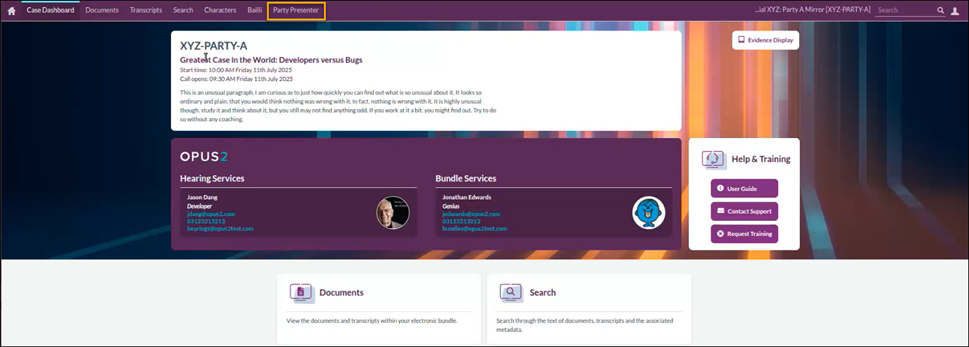
- Select Party Presenter.
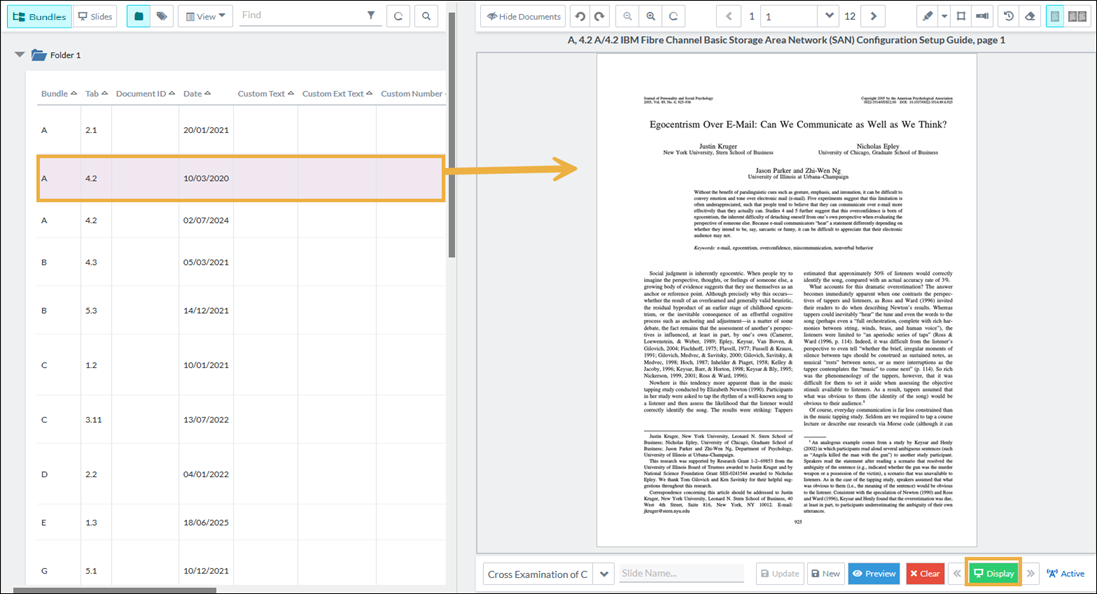
When viewing this page, the user verbally asks for control and gets it granted by the EPE Officer. Once granted, the user sees a You have control of the presentation message and the Display buttons go green. The Clear button goes red to show you can now display your content. The turquoise button shows you have control.
- Start presenting by selecting the first slide in a presentation, then select Display.

Tip: The Display button gets greyed out when you do not have control.
To display a spontaneous document choice in Court, do the following:
- In the Trial bundle pane, navigate to your chosen document.
The preview opens.
- Optionally, annotate the content as required.
- Select Display to see the page shown as a spontaneous display choice, provided you have control.
Using dual page mode
Select the button with two squares to show dual page mode (side by side). You can see two pages in the same document or show two different documents by doing one of the following:
- To see two pages of the same document, select a document first and then select dual page mode. You can then change the left and right pages to be different pages or two views of the same page as needed.
- To see two different documents, start from a blank preview, and select dual page mode. Select the left side, and choose a document to show in that side; then select the right side and select a different document.
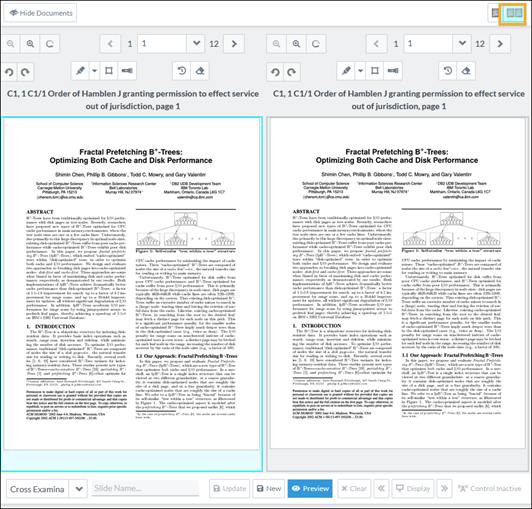
You can then add annotations, highlights, or show two different pages and display to the Court.
Adding annotations to a presentation
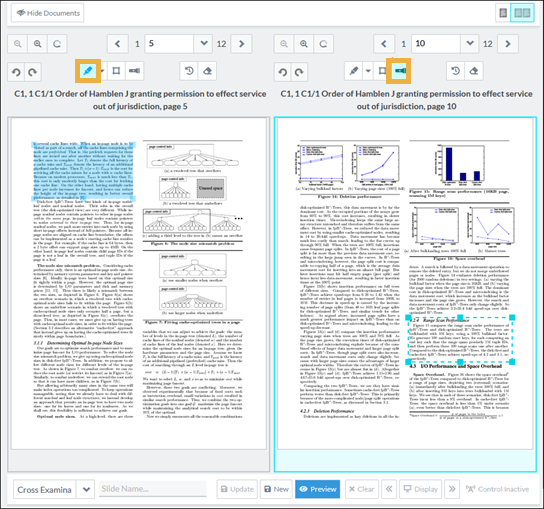
- To add different types of annotation to each page, for example, select a highlight on the left page and the torch icon to add a callout on the right page.
When presented these annotations look like this:
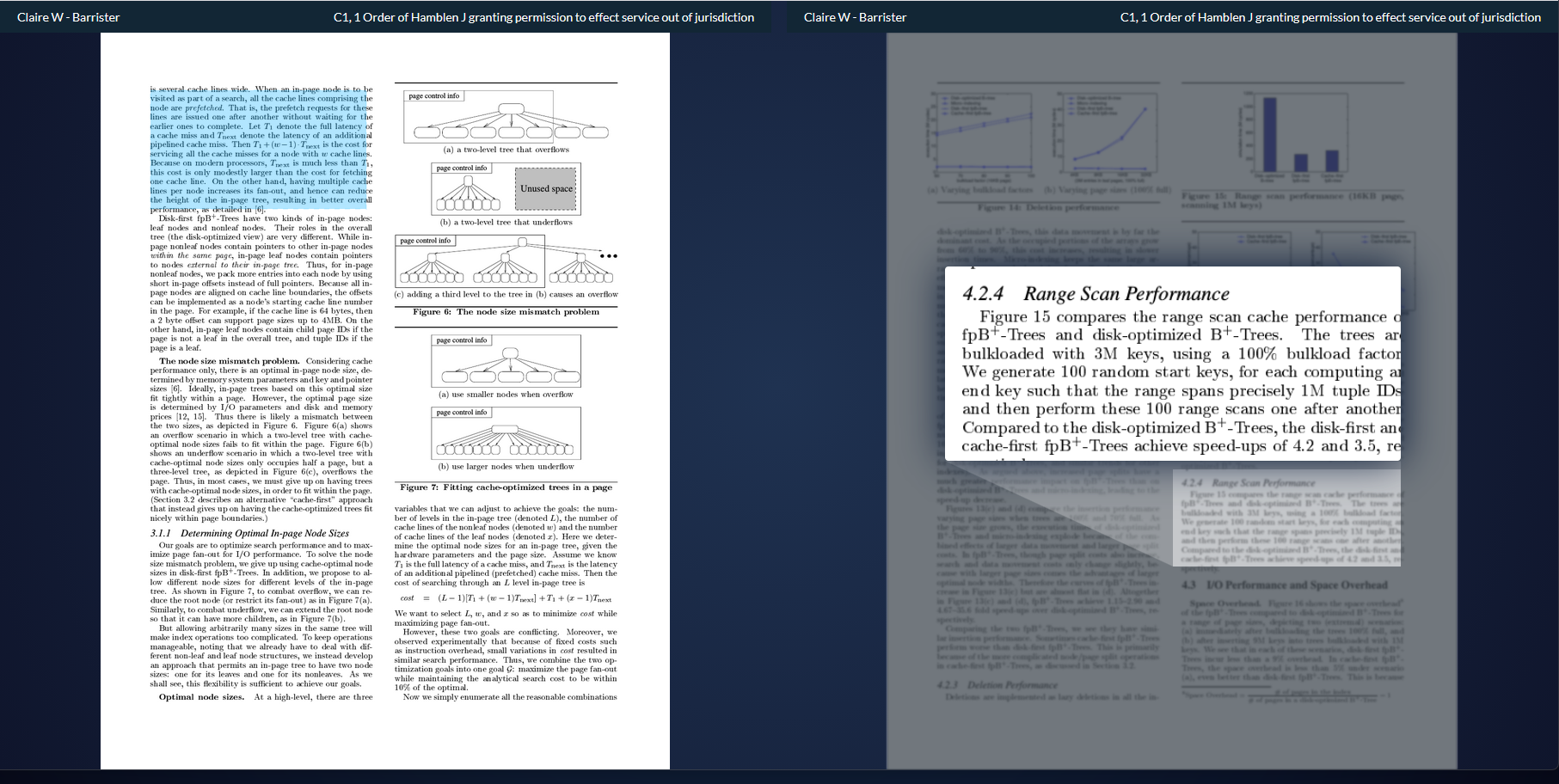
If this dual page view is saved as a new slide, it gets saved automatically as, for example, slide 2 (left) and slide 2 (right).

Some tips:
- There is a limit of two callouts per page per side.
- Boxes and callouts are allowed to overlap with highlights.
- Boxes cannot overlap with other boxes.
- Callouts cannot overlap with other callouts.
- Boxes and callouts cannot overlap.
Related articles
Preparing evidence using EPE Shared Control (Barrister's guide)